
Breadcrumb offers many different ways to check-in to sites. Manual and Automatic options.
Before you start
- Get the Breadcrumb app. The fastest and easiest way to check-in is from the mobile phone app. See how to download and get set up with the app here..
- Check in manually the first time. When you arrive to a site for the first time, you must check-in manually (via QR code is best) to get connected to that project.
Which option should I use?
On occasion, the site's Head Contractor may determine the preferred check-in method to meet the site's requirements or adapt to the site's location or conditions (eg dense CBD areas, regional locations).
These are the main ones:
- Scan a QR code: the easiest and most common way.
- Check in from the app: quick and just as easy as the QR code.
- Host check-in: your phone is flat, at home or not working.
- Kiosk: the site has a tablet/iPad set up for check-in.
- Web browser: your phone can't download or run the app.
- Automatic check-in: can be used after you have checked in to the site manually (this connects you to the site), and all site documents and inductions have been signed.
Manual check-in options
Scan a QR code

- Open your phone's camera, or open the Breadcrumb mobile phone app and tap Scan QR.
- Point the camera at the site's check-in QR code.
- Follow the prompts, complete your induction and read any site updates.
- Tap Check-in to finish.
Tip: Some older phones don't have a built-in QR reader. You can download a free one from the App Store or Google Play.
Check in from the phone app
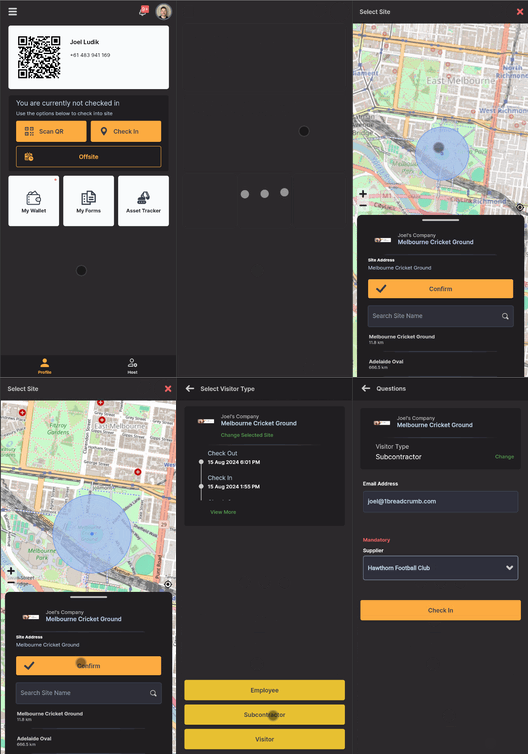
- On the Profile screen, tap Check-In.
- Select your site and tap Confirm.
- Follow the prompts, complete your induction and read any site updates.
- Tap Check-in to finish.
Tip: Sites only show in the list when you're inside their geofence. You might see nearby sites that also use Breadcrumb, so check the company name to make sure you pick the right one.
Check in at a kiosk
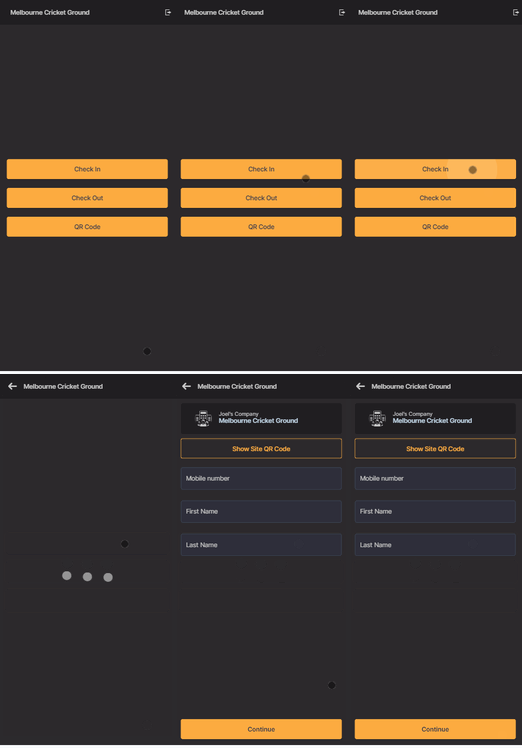
Some sites have a dedicated iPad or tablet for check-in. Site Managers with Host permissions can also switch their own device to kiosk mode. Learn how to set up kiosk mode.
- On the kiosk, tap Check In.
- Follow the prompts, complete your induction and read any site updates.
- Tap Check-In to finish.
Check in from a web browser
If your phone can't download or run modern phone apps, you can check in from a web browser instead. It looks and works the same as the app.
You'll need an internet connection and a browser such as Google Chrome, Safari or Microsoft Edge.
- Go to web.1bc.app and set up your account, login.
- Select your site and tap Confirm.
- Follow the prompts, complete your induction and read any site updates.
- Tap Check-in to finish.
For Site Managers
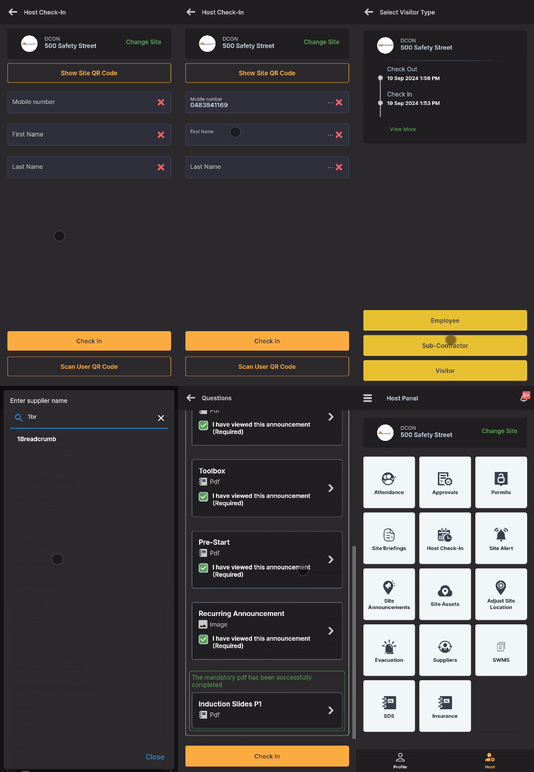
If a worker's phone is flat or has been left at home any Site Manager with Host permissions can check them in using their phone app.
Host check-in
- From the Host page, tap the Host check-In tile.
- Enter the worker's mobile number (no spaces) and wait for their name to appear. If it doesn't, enter their details.
- Tap Check-in and follow the prompts, up to the induction.
- Hand the worker your phone so they can complete their induction and read the site updates.
- Tap Check-in to finish.
QR code from Host check-in - Worker scans the site's QR code
- From the Host check-in tile, click Show site QR code on your phone so the worker can scan it with their own phone.
Site host scans a Worker's QR code
- From the phone app, the Site host opens Host check-in and scans the person's QR code, on the worker's phone app (found next to their name on the main Profile page).
Check in a worker from the Admin portal
- Log in to the admin portal and click Host in the left-hand menu
- Select Check In/Out.
- Search and select your site.
- Search for the worker by first or last name. If they don't have an account yet, enter their mobile number (no spaces).
- Choose their Visitor Type and add their Supplier if needed.
- Hand the worker your device so they can complete any inductions or paperwork.
- Select the orange Check In button.
Automatic check-in
You must be connected to the site first. Make sure you have checked in manually at least once from your phone app beforehand.
Automatic check-in is limited to only checking you in when you arrive to site. It's up to you to open the phone app and check for any updates and site communications.
- Make sure your phone's permissions and settings allow automatic check-in.
- On your first day at a new site, check in using one of the manual options above.
- From then on, the phone app can automatically check you in when you arrive to site, if permissions and settings are correct.
Related Articles:
- How to download the mobile phone app
- How to set up your phone for Automatic check-in
- Why are location permissions important?
Need help or have a question?
Contact our Support Team on 1300 744 666 or email support@breadcrumb.co. We’re happy to help!